Create a card
1
Open an email
In Gmail, open the email you want to turn into a card.
2
Open ZARMS in the side panel
Press the ZARMS icon in the side panel on the right.
3
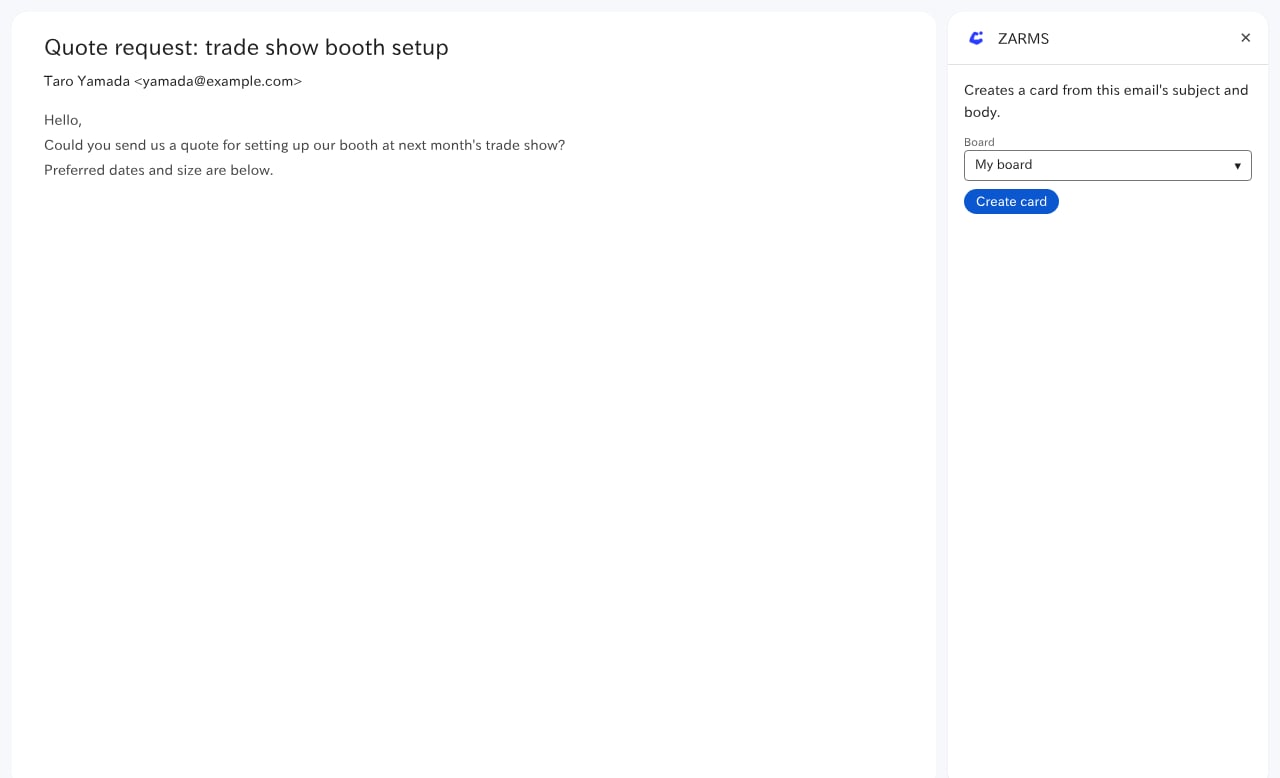
Choose a board
Under Board, choose where to create the card. You can choose My board too. If you belong to
several teams, boards are listed as “team name / board name”.
4
Create the card
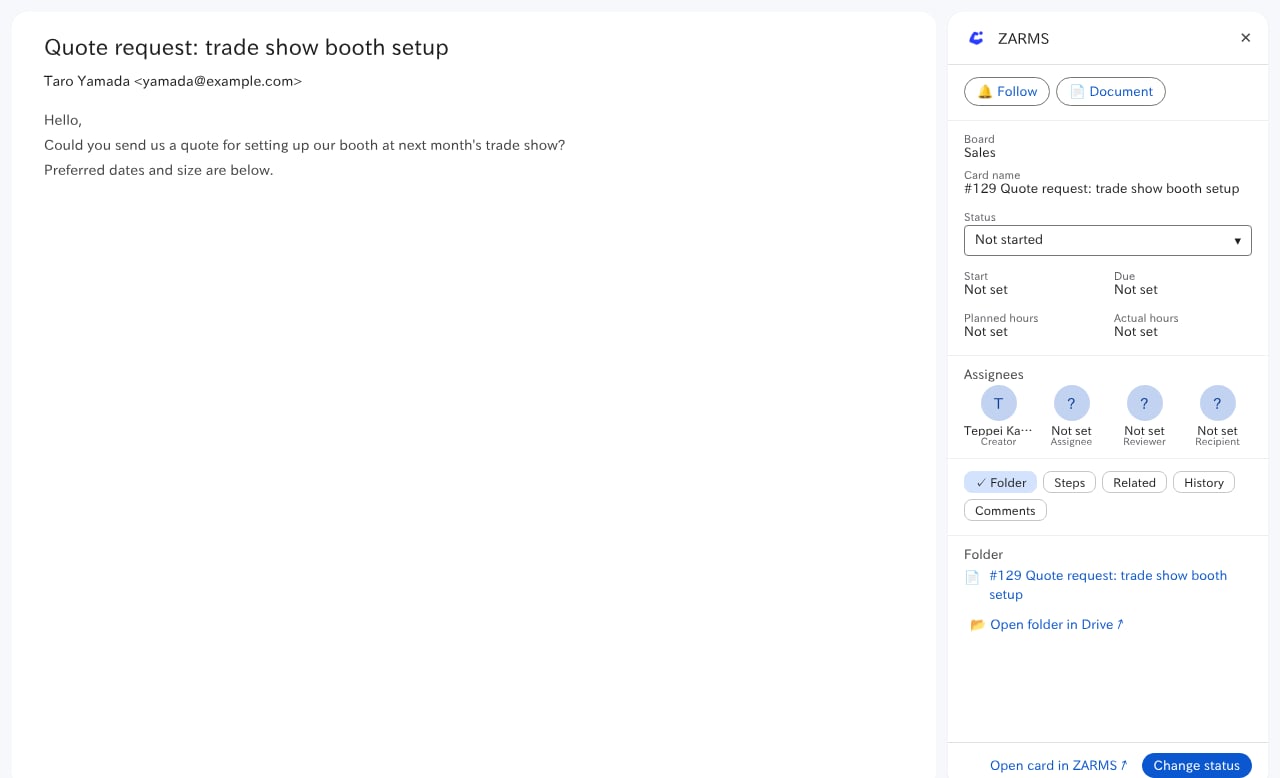
Press Create card. “Card created.” appears, and the new card’s details show in the side
panel.
What ends up in the card
Assignees, due dates and status follow the card create defaults of the board and team. Adjust them in ZARMS afterwards.
The document is created through ZARMS’s own Google connection. If it can’t be created, for example because the connection has lapsed or the board has no Google Drive folder, “The body document couldn’t be created, so the body is in the card’s description.” appears and the body goes into the card description.
What you can do afterwards
The new card stays in the side panel. You can change its status, follow it, and open its document or folder. It works the same way as in See a card and change its status from Google Docs.