
Show the card
1
Open the card's document
Open the card’s Google document from the card in ZARMS. Opening it straight from Google Drive
works too.
2
Open ZARMS in the side panel
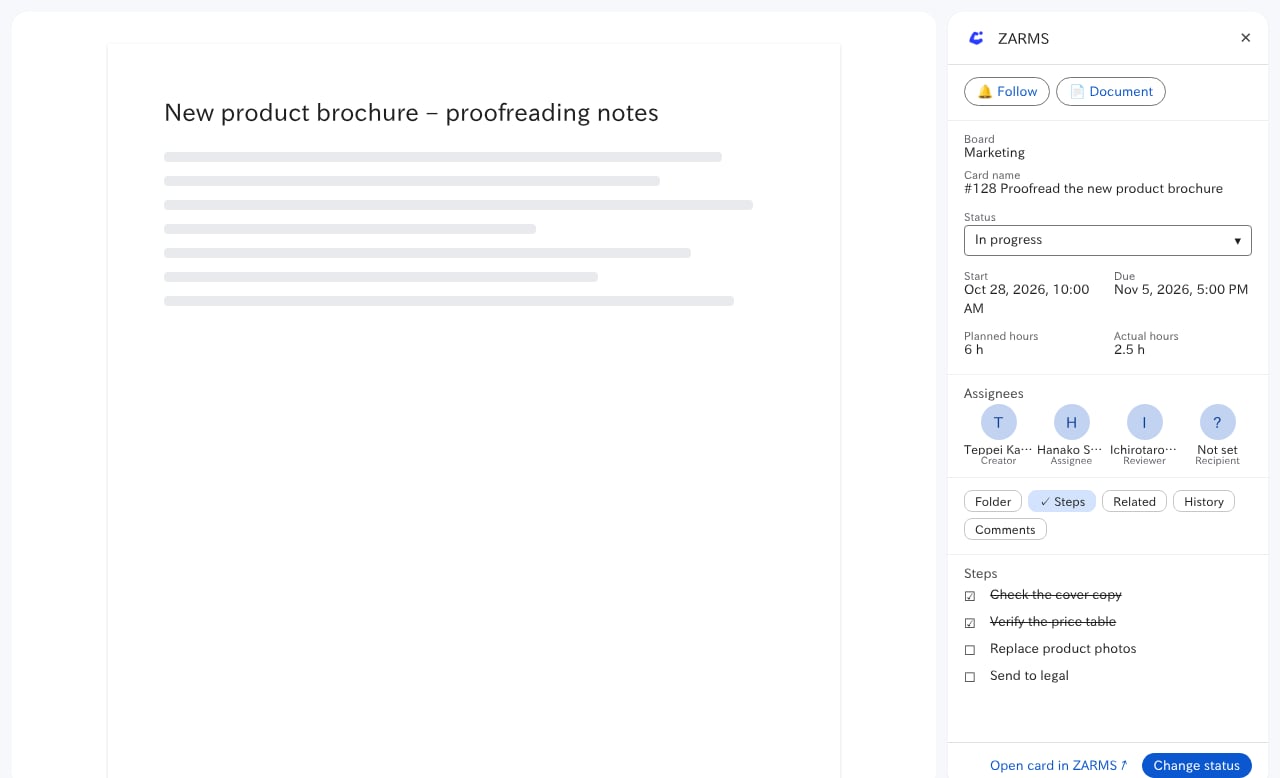
Press the ZARMS icon in the side panel on the right. The document’s card appears.
If “Allow access” appears
To check whether a document belongs to a card, ZARMS needs access to that document. Without it, you see the screen below. Press Allow access to allow access to that one document, and the card appears.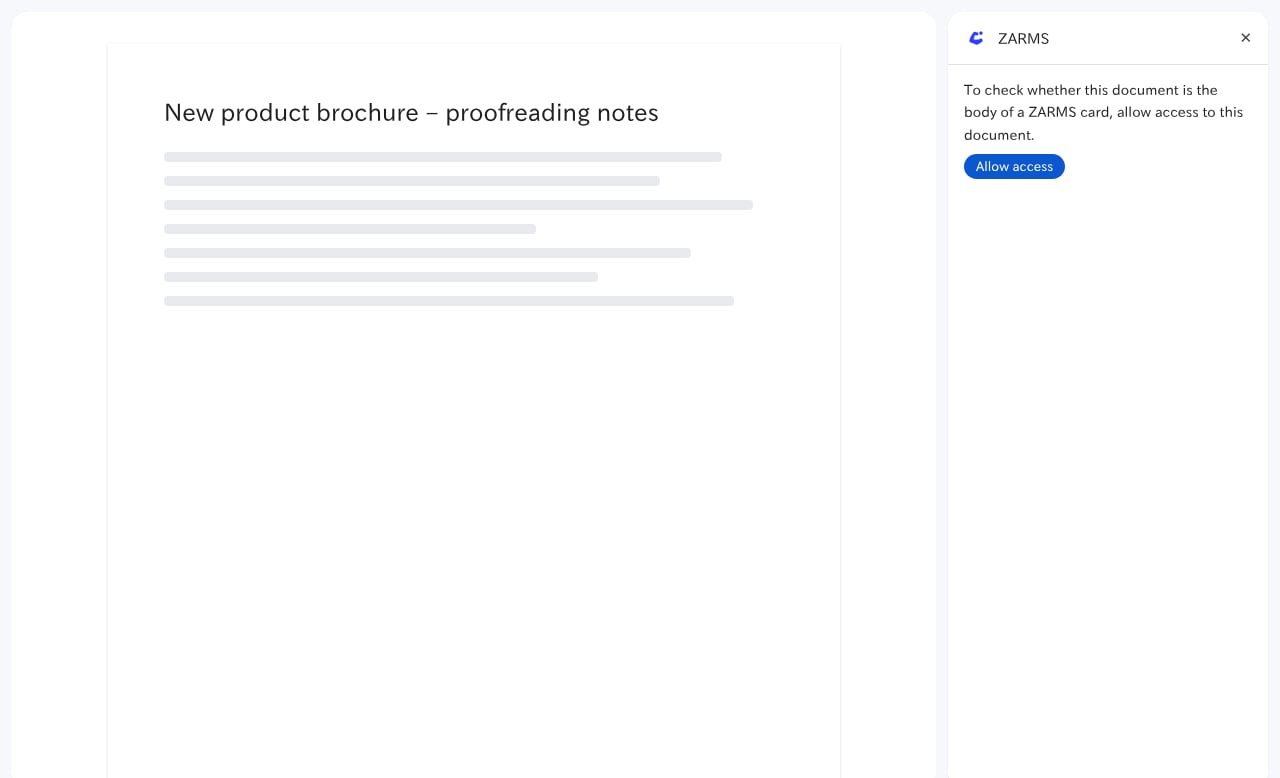
What you can do in the side panel
Status changes follow the same rules as in ZARMS. For which statuses you can choose and how the ball moves, see Status and the ball. You can’t move a card back to Draft from the side panel.